How to use CoLateral
Short how-tos for each part of the desktop app: what it does, the steps, and what to do when something goes wrong. Every part of the app has a ? that opens its page here.
Use the prompt bar
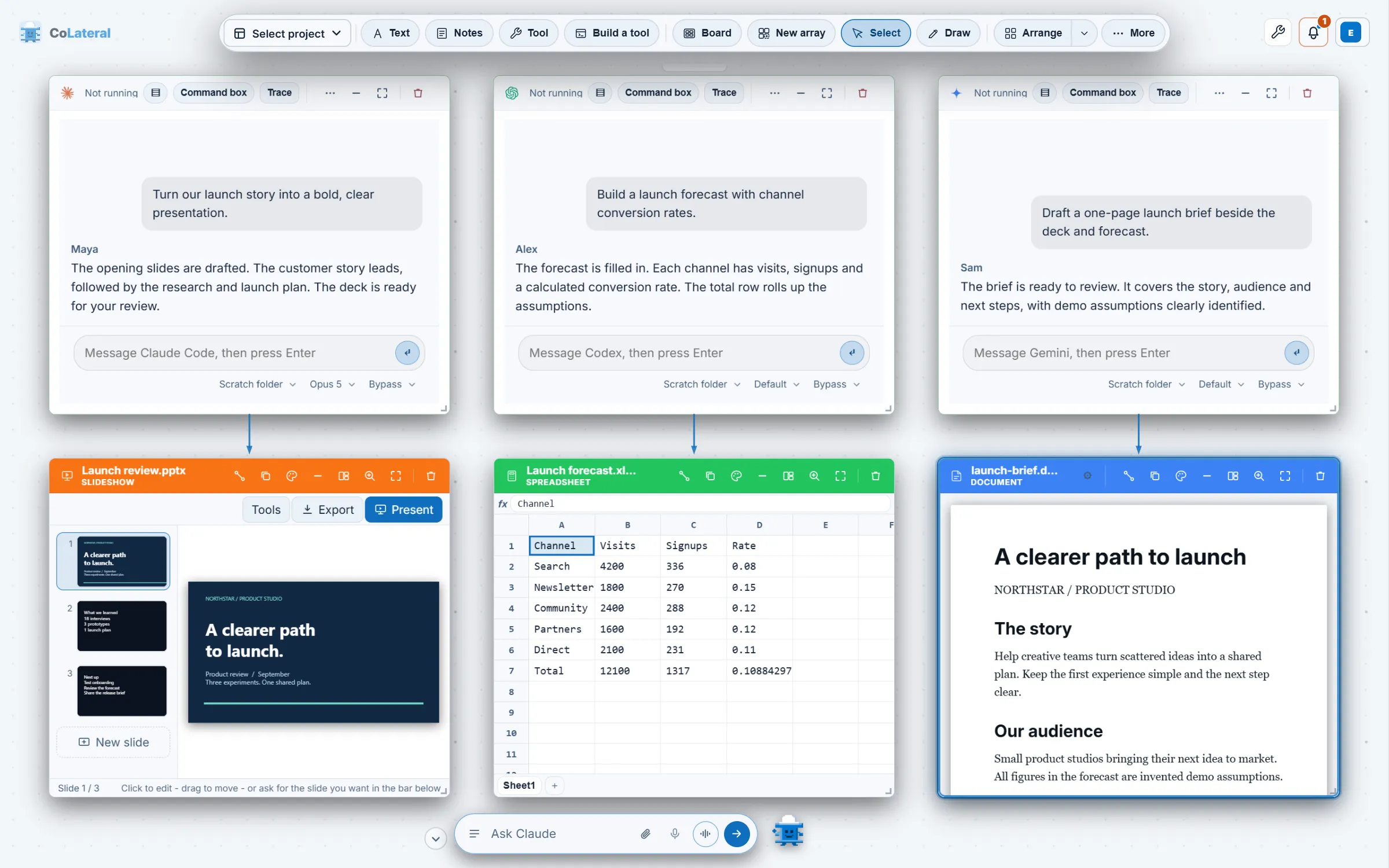
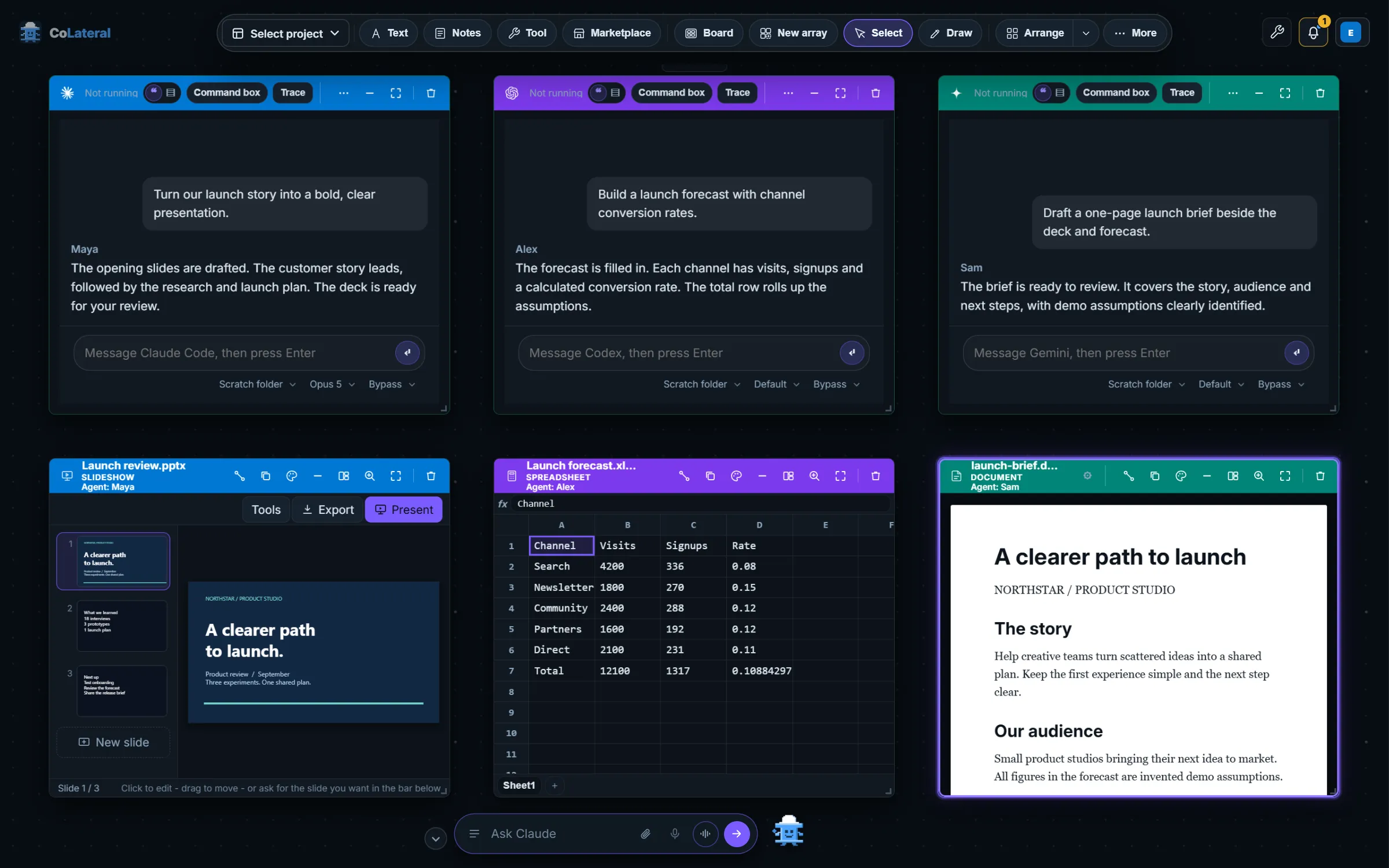
Ask for work in a sentence from the bar at the bottom of the canvas. It runs on your default agent and can add, find and arrange cards for you.
How-toRun agents and connect accounts
Start Claude, ChatGPT (Codex), Gemini or Copilot in a card on the canvas with the subscription you already have, and choose which account each one uses.
How-toFind your way around the canvas
Projects, arrays and the top dock: how the Project Canvas is laid out, how to move between arrays and how your work is saved.
How-toAdd and arrange cards
Put notes, spreadsheets, a browser, files and tools on the canvas from the Add menu, then move, resize, focus or remove them.
How-toImport and export documents
Open a PDF, Word, Excel, PowerPoint, CSV, text or image file as a card, mark it up or edit it, and save a copy back out. Files stay on your computer.
How-toChange your settings
Where each setting lives: your account, theme and transparency, canvas, modules, the orchestrator, agents, dictation, your phone and connectors.
How-toActivate your licence
Enter the key from your purchase email to activate CoLateral on up to two of your computers, and move a seat when you change machines.
How-toUse the Marketplace
Browse tools, modules and games from CoLateral and independent creators, add them to your workspace, and share your own work.
How-toPair your phone with CoLateral
Use your projects, agents and the orchestrator from your iPhone or Android phone while CoLateral runs on your computer. Scan one code; nothing to install.
How-toPlay in CoLateral Arcade
Open the Arcade from the canvas, walk the basement or pick a cabinet from the game hall, and get back to work in one click.
Still stuck? Contact support, or read the FAQ.