What it does
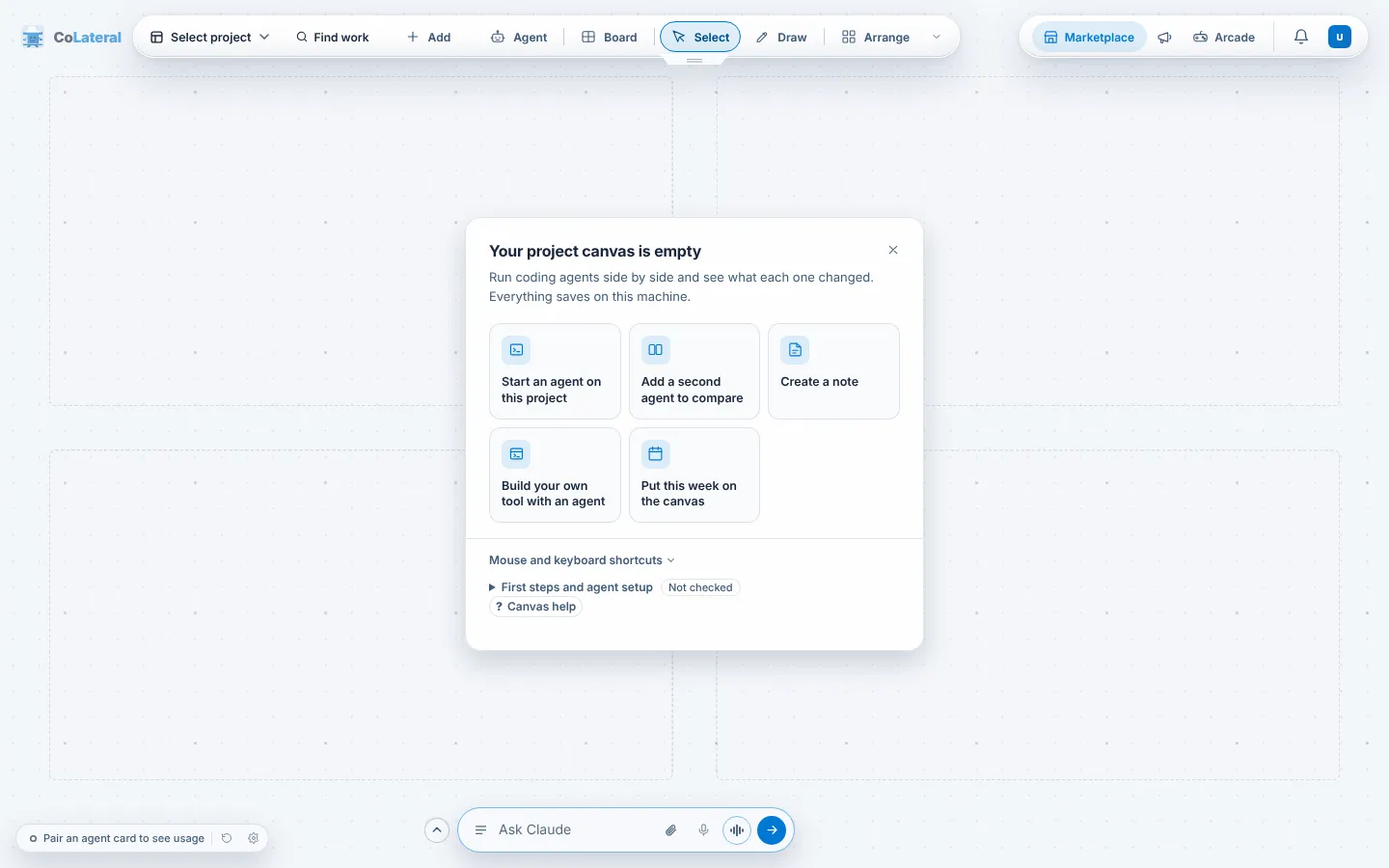
The Project Canvas is where everything in CoLateral sits. Each project has its own canvas. A canvas is a row of arrays: an array is one screen of slots, and each slot holds a card (a note, a document, an agent, a tool). Board shows every array at once.
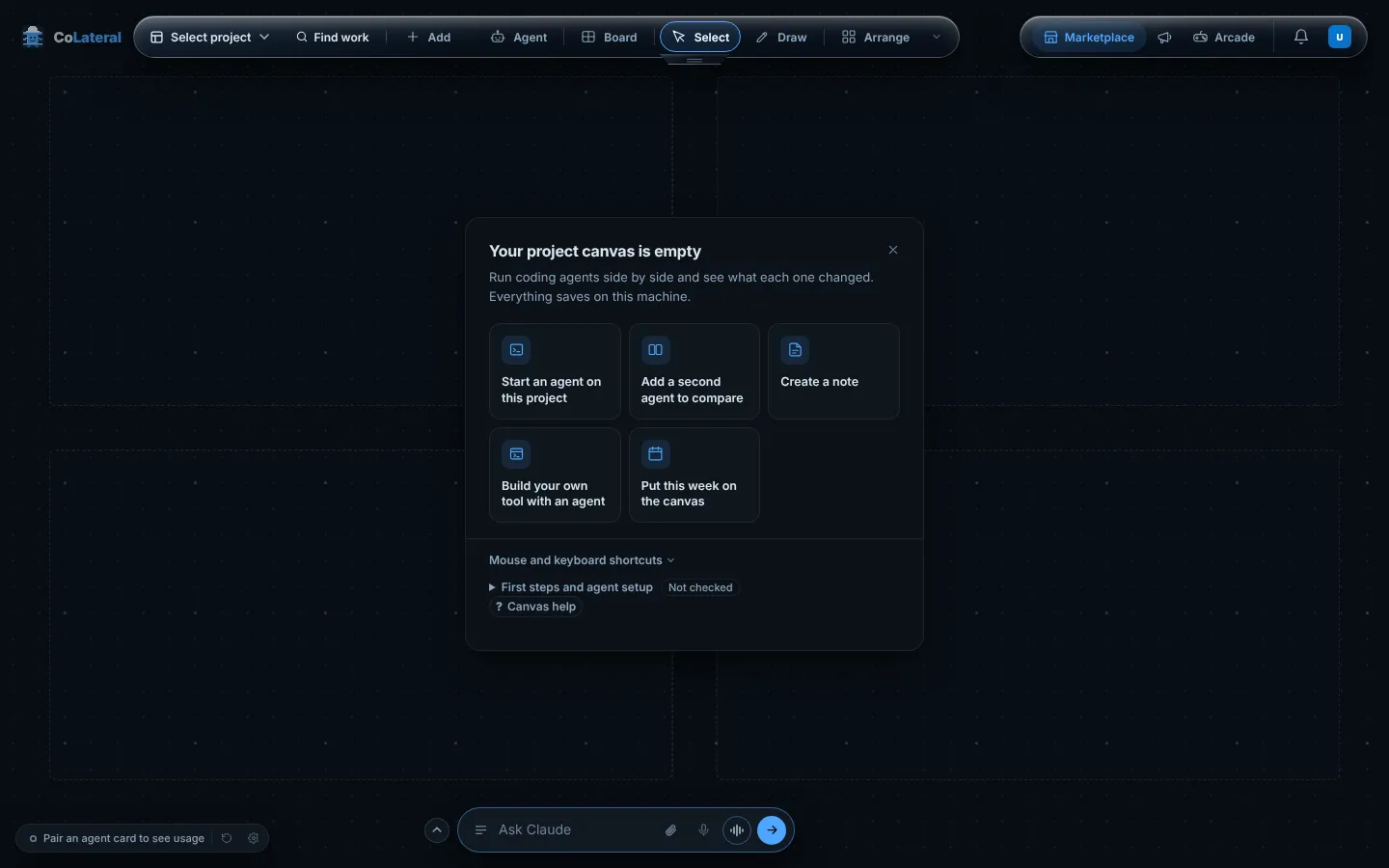
The dock along the top holds the project menu, Find work, Add, Agent, Board, and the modes Select, Draw and Arrange. The group on the right opens the Marketplace, Arcade, notifications and your account. Everything saves on this computer.
Steps
- Open the project menu at the left of the dock (it reads Select project until you have one), choose New project, name it and choose Create project.
- Put something in a slot: choose a starter on the empty canvas, such as Create a note, or use Add in the dock.
- Choose Board to see every array, and choose an array to travel to it. New array in the Add menu starts an empty one and goes to it.
- Use Find work to search the cards in your projects, and Arrange to tidy the cards in the current array.
- Press Ctrl+S on Windows or Cmd+S on macOS to save now. The canvas also saves by itself as you work.
Common errors
| What you see | What to do |
|---|---|
| The getting-started panel is gone | You closed it. Choose Getting started on the empty canvas to show it again. |
| A card I made is missing after reopening | Check the project menu: each project keeps its own canvas, so the card may be in another project. Then check Board for another array. |
| The dock shows fewer buttons than this page | On a narrow window the labels drop first, then buttons move into Add. Widen the window, or turn off Simple mode in Settings > Appearance. |
| Changes did not save | Keep the canvas open and press Ctrl+S or Cmd+S again. Copy anything important into a file before trying anything else, and never clear local data to fix a save: that deletes the copy you are trying to keep. |
Find this page from the app
On an empty canvas, press Canvas help at the bottom of the getting-started panel.
Related help
- Add and arrange cards - Put notes, spreadsheets, a browser, files and tools on the canvas from the Add menu, then move, resize, focus or remove them.
- Use the prompt bar - Ask for work in a sentence from the bar at the bottom of the canvas. It runs on your default agent and can add, find and arrange cards for you.
- Change your settings - Where each setting lives: your account, theme and transparency, canvas, modules, the orchestrator, agents, dictation, your phone and connectors.