What it does
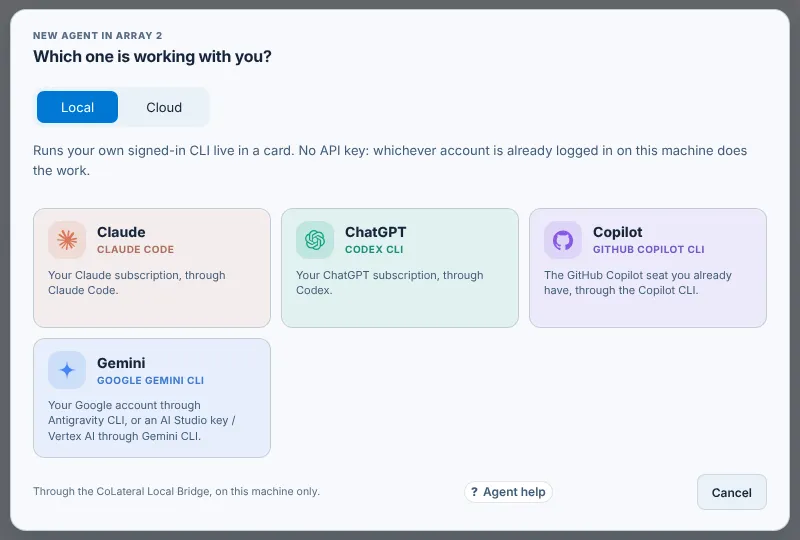
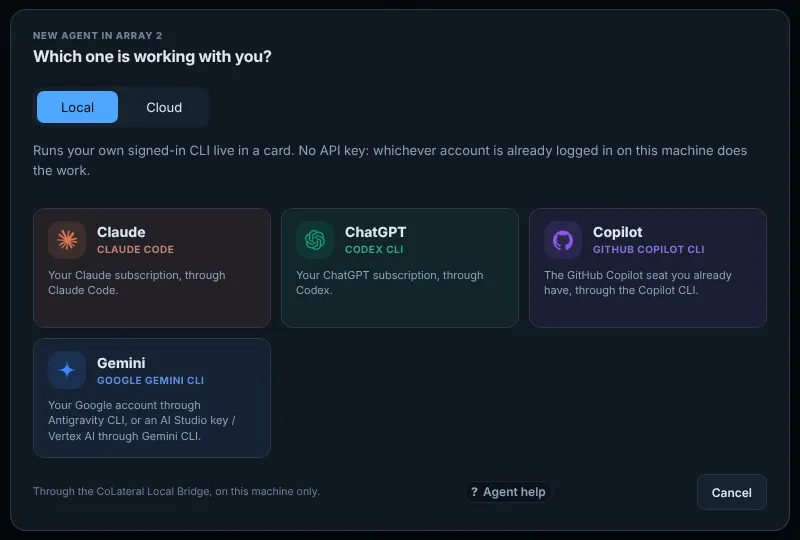
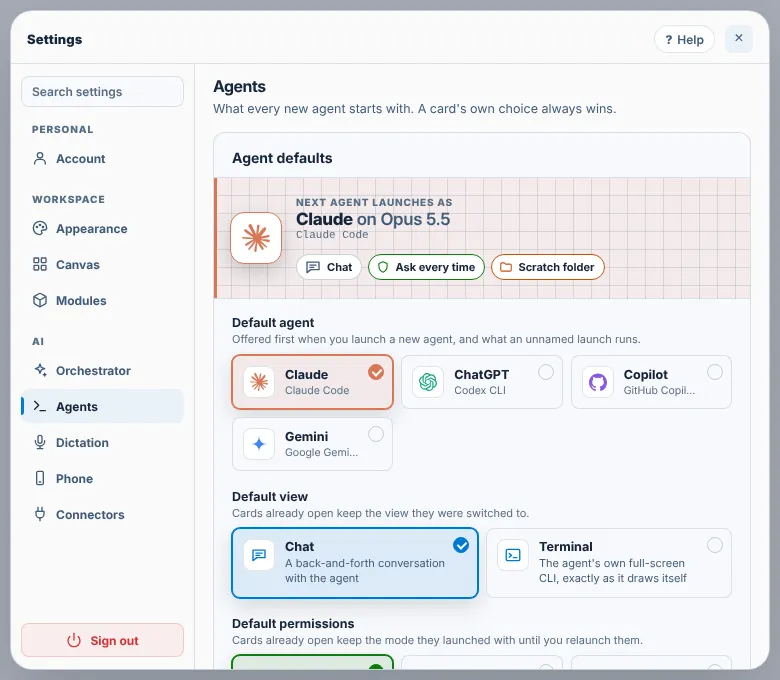
An agent card runs a coding agent's own command-line tool live on the canvas. CoLateral supports four: Claude (Claude Code), ChatGPT (Codex CLI), Gemini (Gemini CLI, or Antigravity CLI for a Google sign-in) and Copilot (GitHub Copilot CLI). There is no CoLateral API key: whichever account is signed in to that CLI on your computer does the work, through the CoLateral Local Bridge on this machine only.
Accounts are chosen once per provider in Settings > Agents > AI accounts, not per card. Add a second account there to switch between, for example, a personal and a work Claude subscription.
Steps
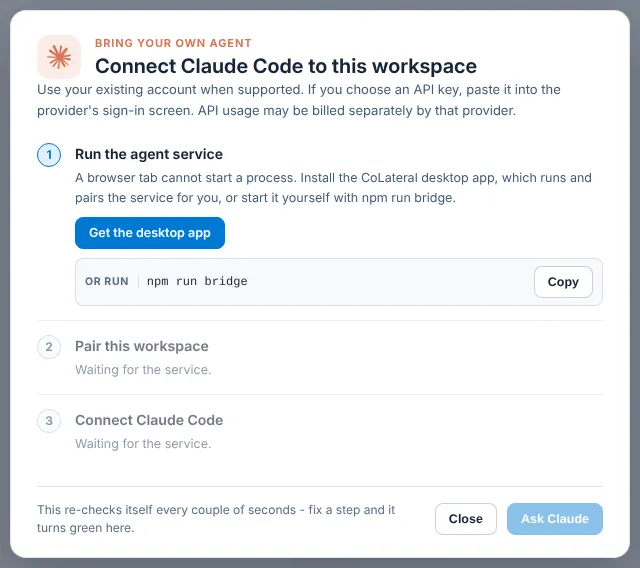
- Install the CLI for the agent you use and sign in to it once in a terminal, for example `npm install -g @anthropic-ai/claude-code` and then `claude`. The connect guide shows the exact command for each one and a Copy button.
- In the top dock choose Agent, keep Local selected and pick Claude, ChatGPT, Copilot or Gemini.
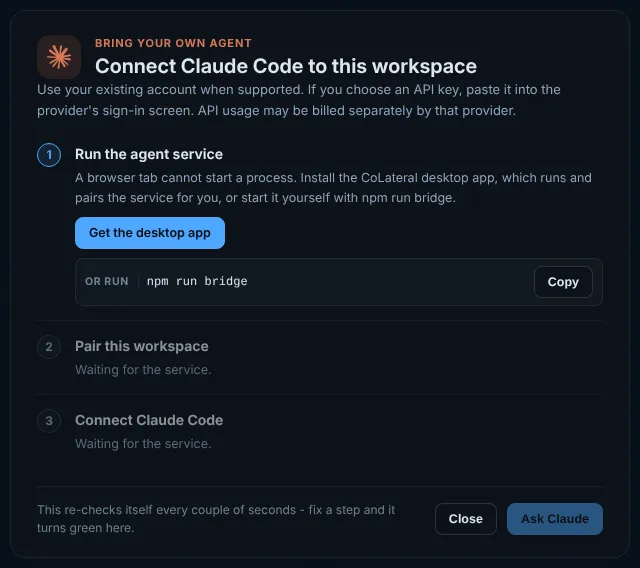
- If the connect guide opens, wait for each of its three steps to turn green. It re-checks itself every couple of seconds. Use Connect account / API key if the CLI asks you to sign in.
- Type a task into the card, or send it from the prompt bar with @ and the agent's name.
- To use another account, open Settings > Agents, choose Add account for that provider, then start a new agent and sign in when it asks. Running agents move over when you press Restart now.
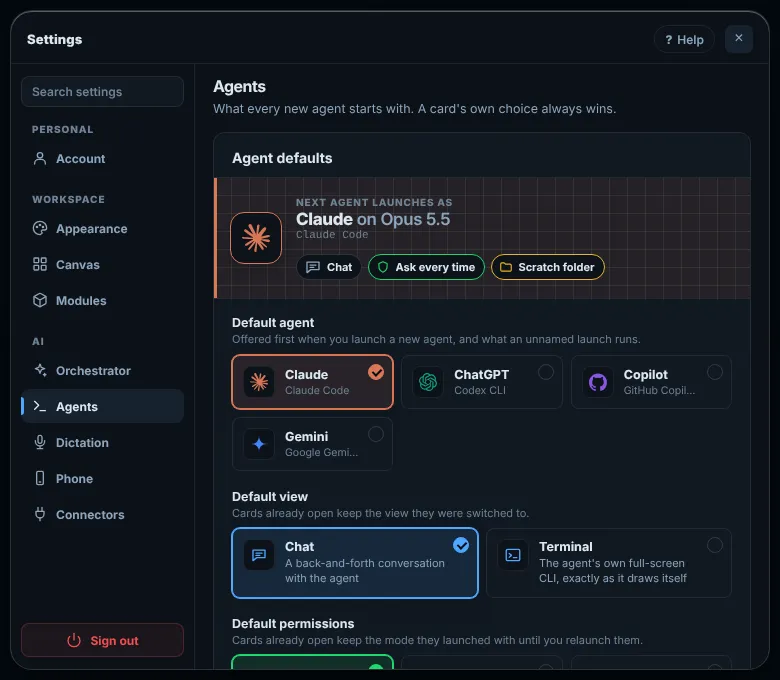
- Set which agent new cards and the prompt bar start with under Settings > Agents > Default agent.
Common errors
| What you see | What to do |
|---|---|
| Step 1 of the connect guide stays on Run the agent service | The Local Bridge is not running. Open the CoLateral desktop app; a browser tab cannot start it. If the app is open, quit and reopen it. |
| The CLI is installed but the card says it cannot find it | Install it globally with npm (the guide's command) and restart CoLateral so it sees the new command. Node.js must be installed for npm. |
| Copilot fails as if it were not installed | If your Copilot seat comes from an organisation, an admin has to turn on the Copilot CLI policy first. It is off by default. |
| Gemini will not sign in with Google | Gemini CLI no longer takes a personal Google sign-in. Install Antigravity CLI and run `agy` once, or use an AI Studio key with Gemini CLI. |
| A saved card says its CLI is no longer supported | The card was made with a CLI CoLateral no longer runs. Press its Start as button to restart it on a supported agent, or start a new card with one of the four. |
| A new card opens asleep | You have reached Agents running at once in Settings > Appearance. Close or sleep an agent you are not using, or raise the number. |
Find this page from the app
Choose Agent in the top dock and press Agent help at the bottom of the picker. In Settings, open Agents and press Help in the header.
Related help
- Use the prompt bar - Ask for work in a sentence from the bar at the bottom of the canvas. It runs on your default agent and can add, find and arrange cards for you.
- Change your settings - Where each setting lives: your account, theme and transparency, canvas, modules, the orchestrator, agents, dictation, your phone and connectors.
- Pair your phone with CoLateral - Use your projects, agents and the orchestrator from your iPhone or Android phone while CoLateral runs on your computer. Scan one code; nothing to install.