What it does
The desktop app asks for a licence key the first time it opens. The key is in your purchase email and looks like COLAT-XXXX-XXXX-XXXX-XXXX. A licence has two seats, so you can use it on two of your computers. The app checks in with the licence server when you activate and then every 30 days, so it needs an internet connection at those times. There is no trial.
If both seats are taken, the activation screen lists the devices holding them with a Release button beside each, so you can move a seat to a new computer yourself, even one you no longer have.
Steps
- Install CoLateral from the download page and open it. The Activate this device screen appears.
- Copy the key from your purchase email and paste it into Licence key. Pasting the whole line from the email works; the app picks the key out of it.
- Choose Activate. When the key is accepted, CoLateral opens.
- If you see This licence is already in use, choose Release next to a device you no longer use, then choose Activate again.
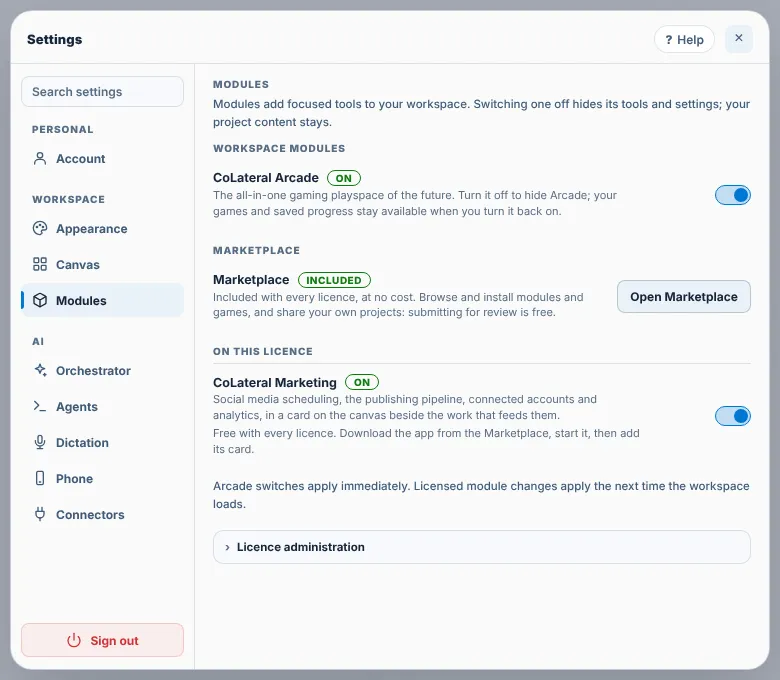
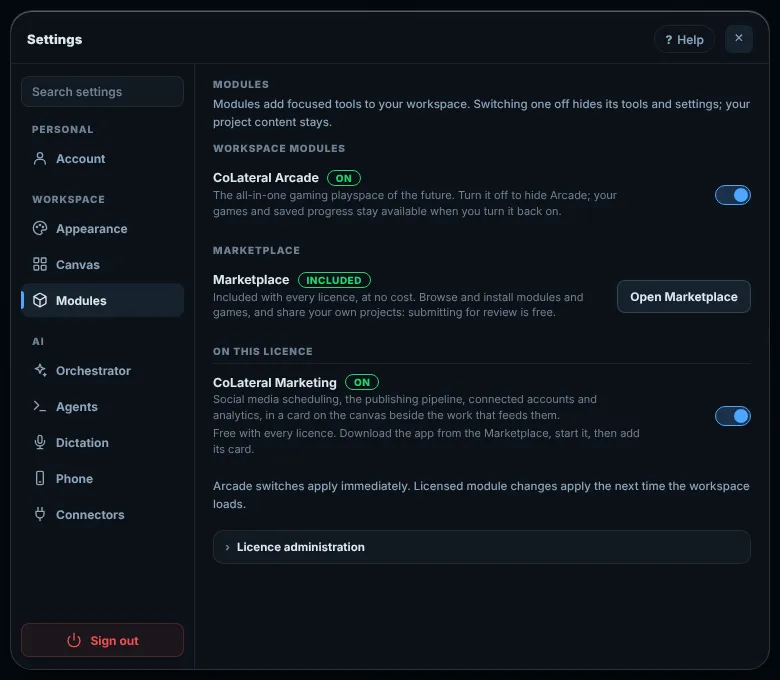
- To check what your licence includes later, open Settings > Modules. Choose Refresh licence after a change to your purchase.
Common errors
| What you see | What to do |
|---|---|
| "That key was not recognised" | Check it against the key in your purchase email and enter it again. Use the letters and digits exactly as sent. |
| "CoLateral could not reach the licence server" | Check your internet connection, then try again. Your saved projects are safe. |
| "Too many activation attempts from here" | Wait up to one hour and try again. |
| "This licence has freed three devices in the last 30 days" | That is the self-service limit. Email support from your purchase address and we will free the device for you. |
| "This computer no longer matches the one this seat was activated on" | Enter your key again to move the seat to this computer. This can happen after replacing hardware or reinstalling the system. |
| No purchase email | Check your spam folder, then contact us from the address you bought with. Never send your full licence key to anyone. |
Find this page from the app
On the activation screen, choose Licence help at the bottom. In Settings, open Modules and press Help in the header.
Related help
- Change your settings - Where each setting lives: your account, theme and transparency, canvas, modules, the orchestrator, agents, dictation, your phone and connectors.
- Use the Marketplace - Browse tools, modules and games from CoLateral and independent creators, add them to your workspace, and share your own work.