What it does
CoLateral on your phone is a companion to the desktop app. While CoLateral is open on your computer with the Project Canvas showing, the phone can open your projects and cards, add photos and files, watch and instruct agents, answer approvals, and talk to the orchestrator by text or voice.
Pairing takes one scan. The code on your computer is a link: your phone's camera opens it and CoLateral runs in the phone's browser, on iPhone or Android, with nothing to install. Everything between the two devices is end-to-end encrypted, so CoLateral's relay passes sealed messages it cannot read, and nothing on your computer listens on the network.
Steps
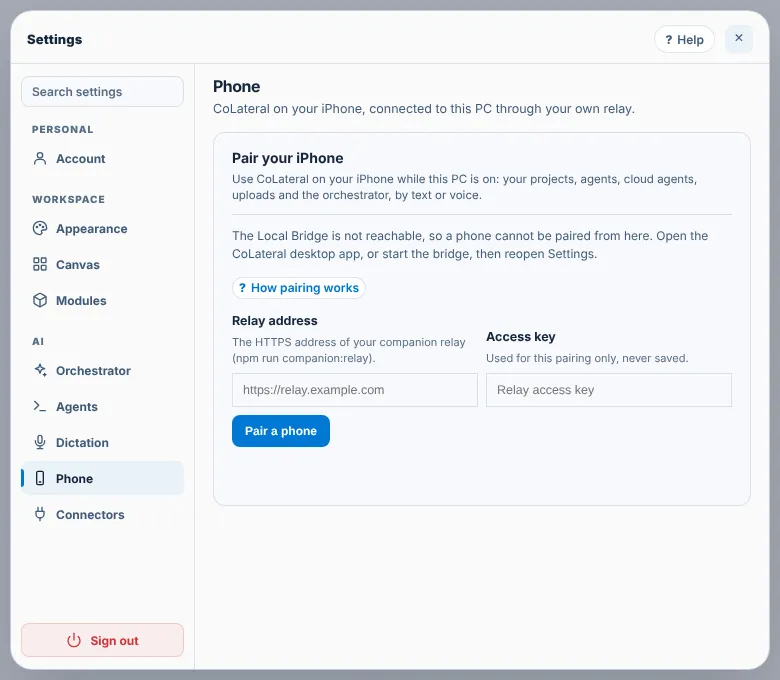
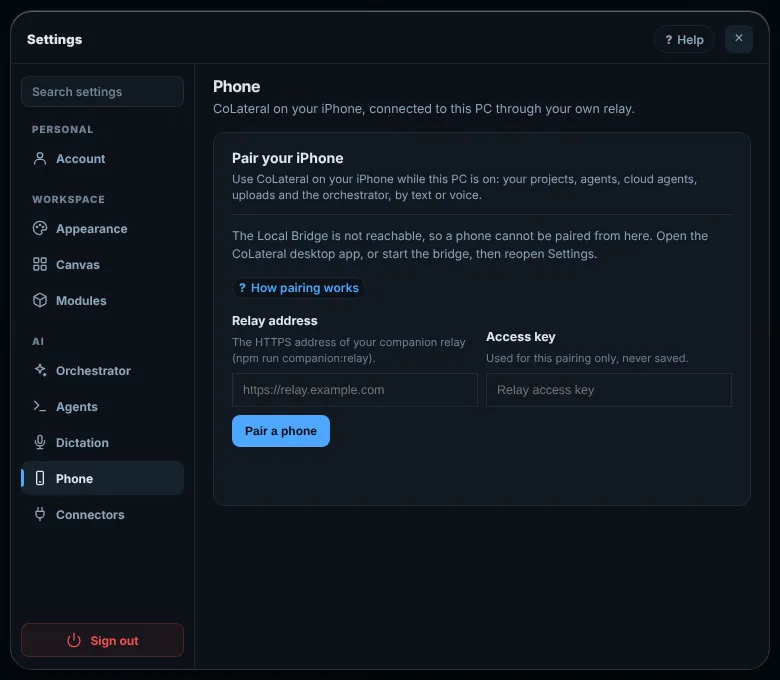
- In the desktop app open Settings > Phone and choose Pair a phone. A QR code appears and expires in about ten minutes.
- Open the Camera on your iPhone or Android phone, point it at the code and tap the link that appears. CoLateral opens in the phone's browser.
- Check that the six digits on the phone match the ones on your computer, then choose Allow full control or Allow view only. If they do not match, choose Cancel and start again.
- Optional: add CoLateral to your home screen from the browser's Share or menu button, so it opens like an app.
Common errors
| What you see | What to do |
|---|---|
| "The Local Bridge is not reachable, so a phone cannot be paired from here" | Pair from the CoLateral desktop app, not a browser tab. If the app is open, quit and reopen it, then reopen Settings. |
| The phone says the computer is unreachable | Keep CoLateral open with the Project Canvas showing. If No window is serving your phone yet shows under Paired phones, open the canvas, or choose Serve my phone from this window. |
| The QR code expired | Choose New code, or Pair a phone again. |
| The camera does not offer a link | Choose Copy link on your computer and open it on the phone, for example by sending it to yourself. |
| Pairing was cancelled by itself | A second phone scanned the same code. Start again and keep the code on your own screen. |
| A phone is lost | Open Settings > Phone and choose Remove beside it. Anything it queued is dropped and its later messages are ignored. |
Find this page from the app
Open Settings > Phone and choose How pairing works, or press Help in the Settings header.
Related help
- Run agents and connect accounts - Start Claude, ChatGPT (Codex), Gemini or Copilot in a card on the canvas with the subscription you already have, and choose which account each one uses.
- Use the prompt bar - Ask for work in a sentence from the bar at the bottom of the canvas. It runs on your default agent and can add, find and arrange cards for you.
- Change your settings - Where each setting lives: your account, theme and transparency, canvas, modules, the orchestrator, agents, dictation, your phone and connectors.