What it does
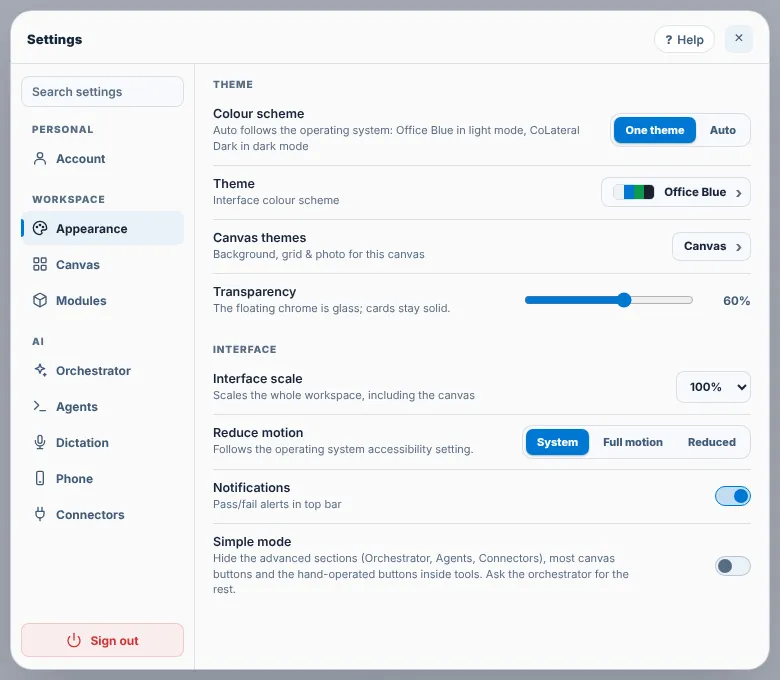
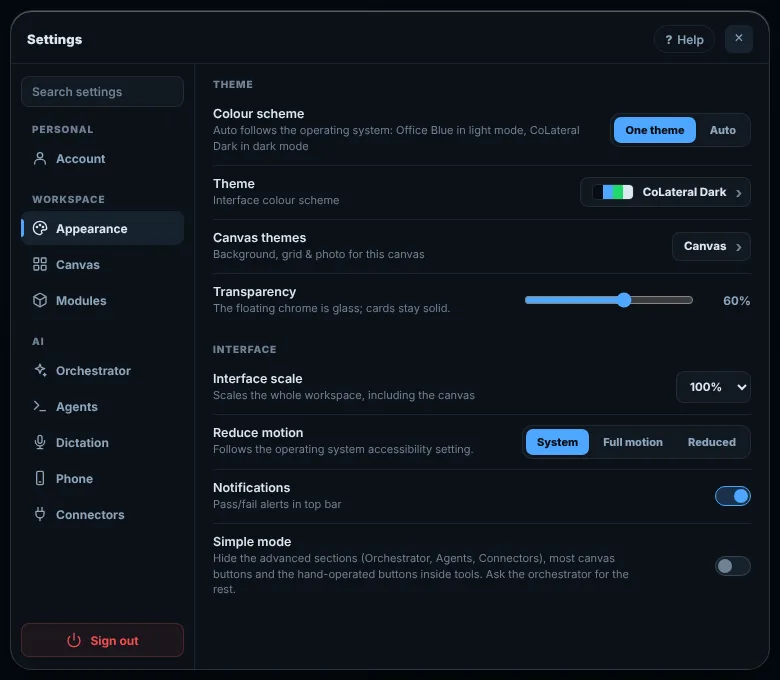
Settings is one window with a search box and a list of sections: Account; Appearance, Canvas and Modules under Workspace; and Orchestrator, Agents, Dictation, Phone and Connectors under AI.
Appearance has the colour scheme (Auto follows your system), four themes (Office Blue, CoLateral Dark, Dracula and Tokyo Night), one Transparency slider, interface scale, reduced motion, Simple mode and Agents running at once. Canvas has editing tools on cards and the subscription usage bar.
Steps
- Click your profile picture at the top right of the canvas and choose Account & settings at the top of the panel that opens.
- Pick a section on the left, or type in Search settings to find a setting by name.
- Change the setting. Most apply at once; a module switched on or off applies the next time the workspace loads.
- Close the window with the cross, or press Esc.
Common errors
| What you see | What to do |
|---|---|
| A section such as Orchestrator or Agents is missing | Simple mode hides the advanced sections. Turn it off in Settings > Appearance, or search for the setting by name. |
| A module switch did nothing | Licensed module changes apply the next time the workspace loads. Close and reopen the canvas. |
| The theme went back to light or dark on its own | The colour scheme is on Auto, which follows your system. Choose a fixed theme in Settings > Appearance. |
| Settings asks before clearing data | Account > Data & history > Clear local data removes the profile, the canvas, saved results and every preference on this computer. Use it only if you mean to start again. |
Find this page from the app
Open Settings and press Help in the header, beside the close button. It opens the page for the section you are on: Agents, Phone and Modules each have their own.
Related help
- Run agents and connect accounts - Start Claude, ChatGPT (Codex), Gemini or Copilot in a card on the canvas with the subscription you already have, and choose which account each one uses.
- Activate your licence - Enter the key from your purchase email to activate CoLateral on up to two of your computers, and move a seat when you change machines.
- Pair your phone with CoLateral - Use your projects, agents and the orchestrator from your iPhone or Android phone while CoLateral runs on your computer. Scan one code; nothing to install.