What it does
Any file you upload becomes a card on the canvas. PDF, Word (.docx), Excel (.xlsx and .xlsm), CSV and TSV, PowerPoint (.pptx, as an editable slideshow), text and Markdown, and common image types all open in place. The file is read on this computer only; nothing is uploaded anywhere.
Exporting never changes your original. A PDF exports a new marked-up copy, Word and text cards offer Download a copy (and Download original), and other types export a copy of the original with your markups in a separate JSON file.
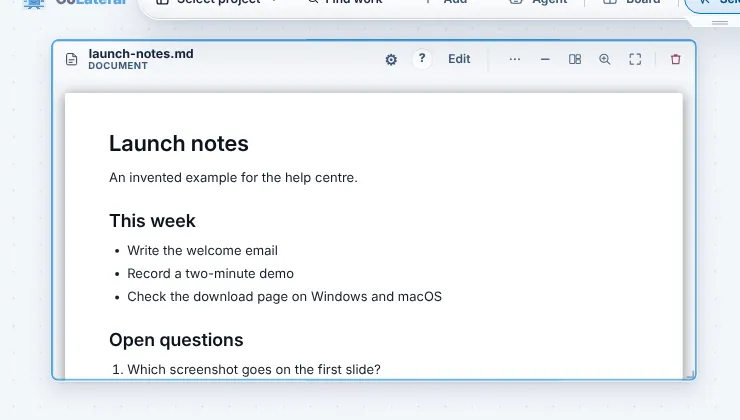
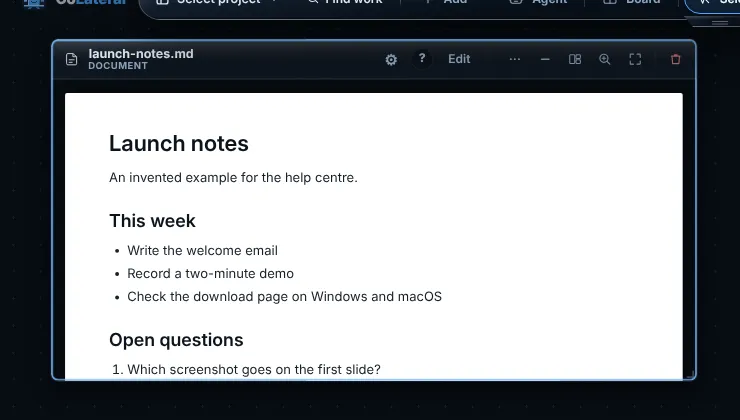
Steps
- Choose Add > Upload in the top dock, or drag one or more files from your computer onto the canvas.
- Pick the file. It opens as a card in the next free slot.
- Read, mark up or edit it in the card. A PDF has a markup mode; a text or Markdown file has Edit.
- To save your work as a file, use Export on a PDF card, or Download a copy on a Word or text card, from the card header or its gear menu.
- After a restart, if a card says the file is not available in this session, choose Reopen file... and pick the same file. The card and its markups are kept.
Common errors
| What you see | What to do |
|---|---|
| "... is not available in this browser session" | The card remembers the file but not its contents. Choose Reopen file... and select the same file; a different file is flagged before it is attached. |
| "A legacy binary .xls cannot be read" | Open it in Excel or another spreadsheet app, save it as .xlsx, and upload that. |
| "... is above the safe ... preview limit" | The file is too large to show (Word files over 25 MB, for example). It stays saved on this computer for download, but the card does not render it. Split or compress the file. |
| "The file is not available locally - reopen it first, then export." | Reopen the file in the card, then export again. |
| "The source file changed while the export was being prepared" | Wait until the card shows the current file, then export again. |
Find this page from the app
Press the ? in the header of any document card. When a file cannot be shown, the message on the card has a Help with files link.
Related help
- Add and arrange cards - Put notes, spreadsheets, a browser, files and tools on the canvas from the Add menu, then move, resize, focus or remove them.
- Find your way around the canvas - Projects, arrays and the top dock: how the Project Canvas is laid out, how to move between arrays and how your work is saved.
- Use the prompt bar - Ask for work in a sentence from the bar at the bottom of the canvas. It runs on your default agent and can add, find and arrange cards for you.