What it does
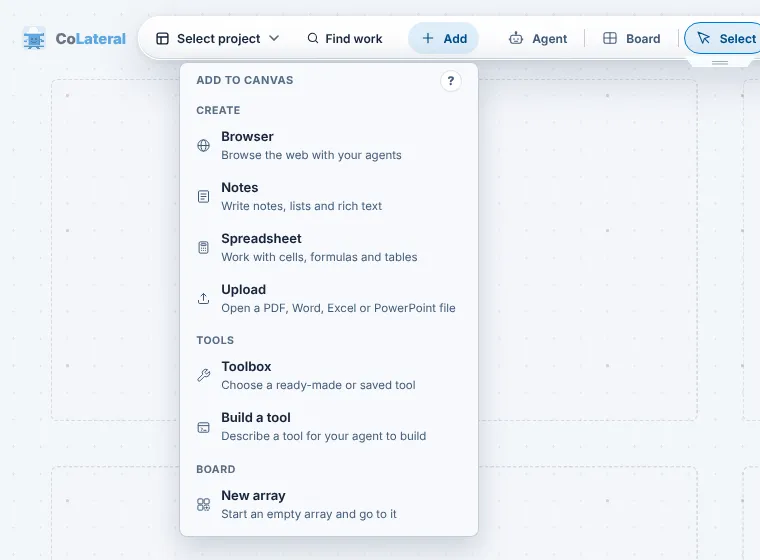
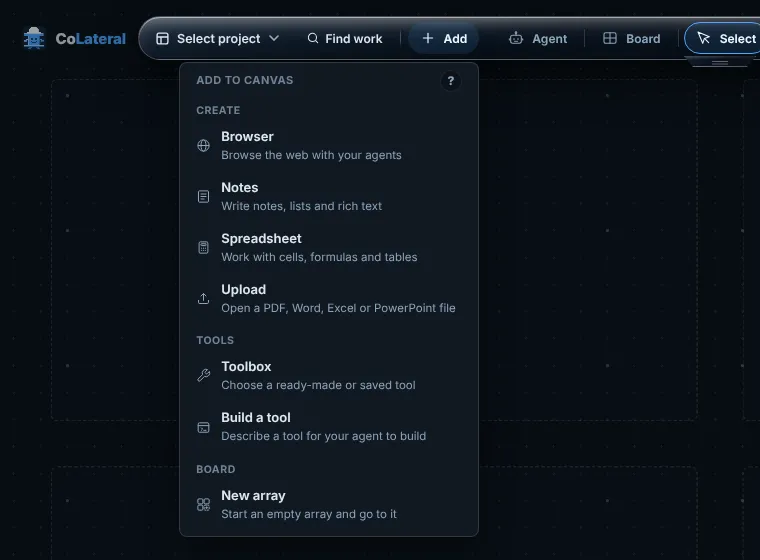
A card is one piece of work in a slot on the canvas. The Add menu in the top dock lists every card you can make by hand: Browser, Notes, Spreadsheet and Upload under Create, Toolbox and Build a tool under Tools, and New array under Board. Agents have their own button, Agent.
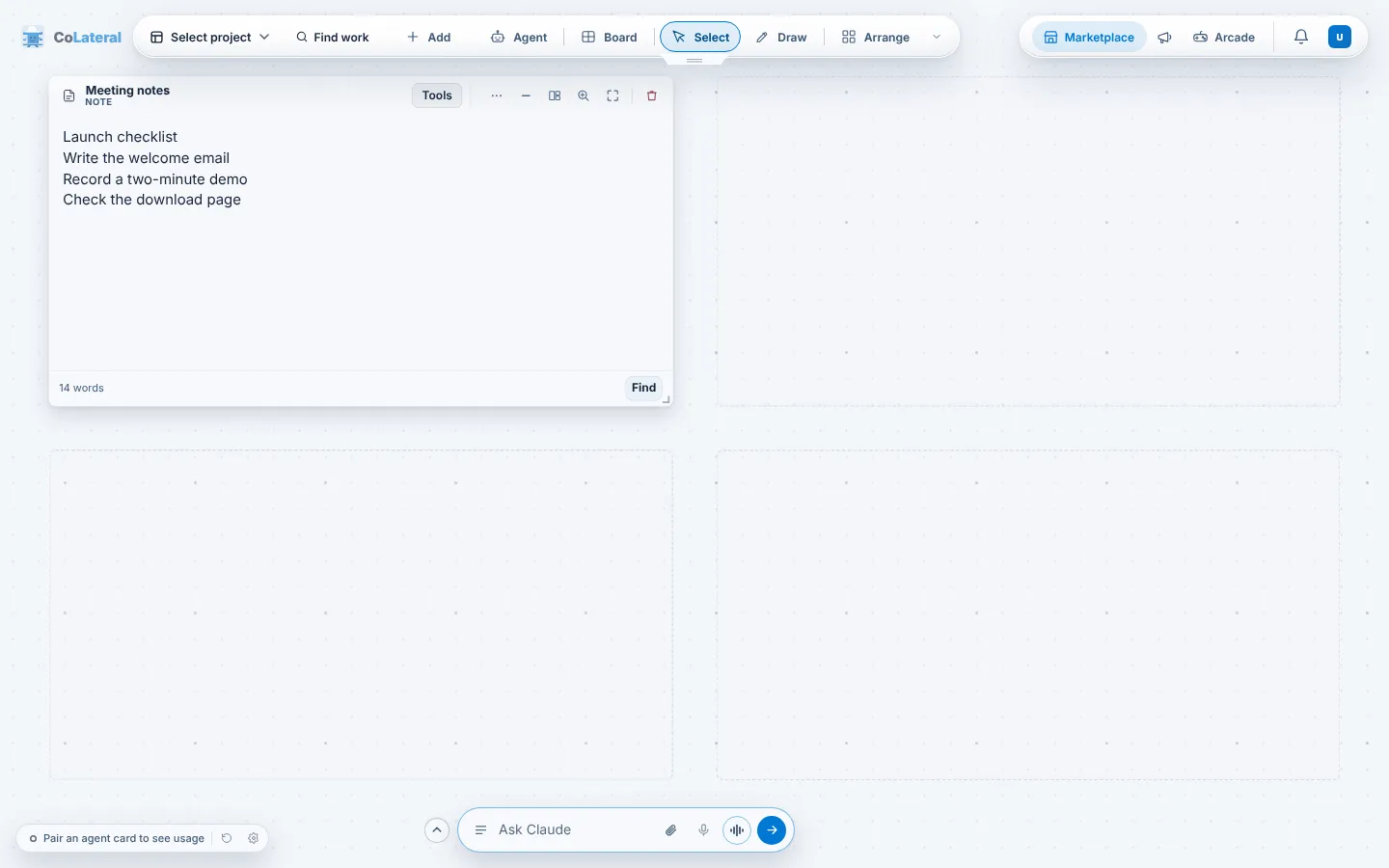
Each card has a header with its title and controls: more actions, minimise, snap layout and size, focus, full screen and remove. You can also ask for a card in a sentence from the prompt bar.
Steps
- Choose Add in the top dock.
- Pick a card, for example Notes. It opens in the next free slot of the array you are looking at.
- Drag a card by its header to move it to another slot, and use the snap layout button in the header to make it span more slots.
- Use the focus button to work on one card on its own, and full screen to give it the whole window. Press Esc to come back.
- Remove a card with the bin button in its header. Ctrl+Z on Windows or Cmd+Z on macOS undoes it.
Common errors
| What you see | What to do |
|---|---|
| A card opened in another array | It went to the next free slot. Choose Board to find it, or make room by moving a card first. |
| A spreadsheet or note has no ribbon of editing buttons | Editing tools are off by default. Use Tools on the card, or turn on Editing tools on cards in Settings > Canvas. |
| An older card now opens as a note | Some card kinds were retired. Saved cards of those kinds open as notes with the same title and content, so nothing is lost. |
| Build a tool made an empty card | The card waits for a description. Type what the tool should do and an agent builds it; an agent must be connected (see Run agents and connect accounts). |
Find this page from the app
Choose Add in the top dock and press the ? at the top right of the menu.
Related help
- Find your way around the canvas - Projects, arrays and the top dock: how the Project Canvas is laid out, how to move between arrays and how your work is saved.
- Import and export documents - Open a PDF, Word, Excel, PowerPoint, CSV, text or image file as a card, mark it up or edit it, and save a copy back out. Files stay on your computer.
- Use the Marketplace - Browse tools, modules and games from CoLateral and independent creators, add them to your workspace, and share your own work.